ChatGPT can peek at your Chrome tabs now
OpenAI’s updated Chrome extension now lets ChatGPT read and act on your open browser tabs, turning the AI into a hands‑on assistant for web tasks.
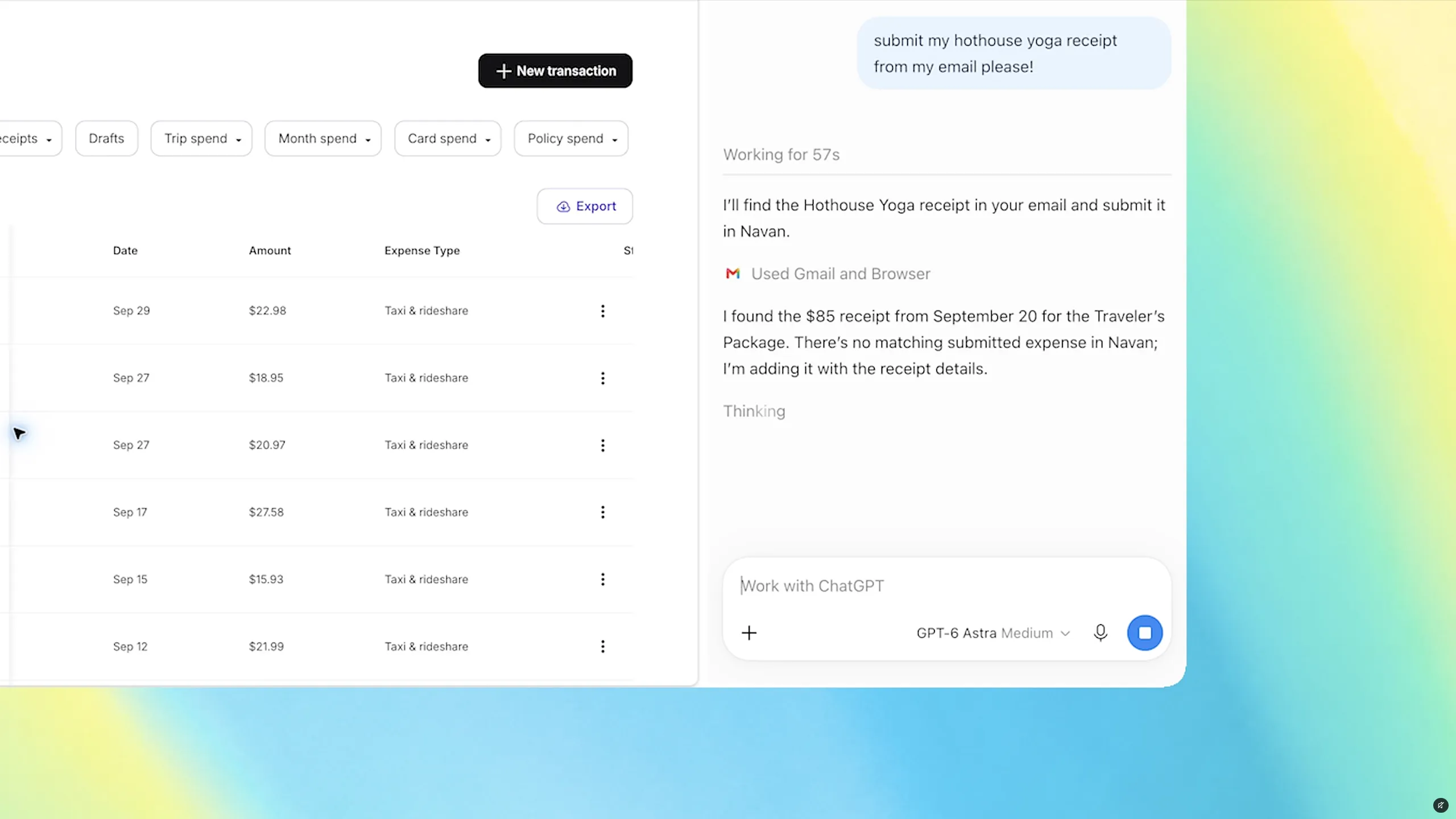
ChatGPT Gains Direct Access to Your Chrome Tabs
OpenAI has rolled out a significant upgrade to its Chrome extension, allowing the ChatGPT interface to view and interact with the tabs you have open. The change moves the AI from a purely text‑based assistant to a more integrated browser companion, capable of pulling information from your current web context, filling out forms, comparing products, and even organizing tabs. Below we break down what the feature does, how it works, and what users should consider before turning it on.
How the Tab‑Reading Capability Works
When the extension is installed, a small sidebar appears alongside your Chrome window. By invoking the `@chrome` tag in a conversation, you signal to ChatGPT that it may access the URLs and visible content of your open tabs. The AI can then:
- Summarize the contents of multiple pages at once.
- Extract key data—such as pricing, specifications, or contact details—and place it into a spreadsheet or comparison chart.
- Draft emails or messages based on the information it has gathered.
- Fill out web forms that are currently open, using data you provide in the chat.
- Group or reorder tabs according to the tasks you describe.
The extension also retains a full conversation history, so you can refer back to earlier prompts without leaving the page you’re working on. This mirrors the functionality of OpenAI’s desktop app, but now it lives directly inside the browser.
Practical Use Cases
1. Shopping Comparisons
Imagine you have three product pages open for different sofas. By asking ChatGPT to "compare the three tabs I have open," the AI can pull dimensions, price points, and user reviews, then present a concise table. You can follow up with a request to add the best option to a Google Sheet or draft a purchase inquiry.
2. Research & Writing
If you’re drafting a report and have several articles open, you can ask the assistant to summarize each source, extract citations, or generate a brief outline that incorporates the key points from each tab.
3. Form Automation
When you land on a registration or booking page, you can tell ChatGPT to fill in the fields using information you’ve already supplied in the chat. The AI will populate the form and can even add the appointment to your calendar if you grant permission.
4. Tab Management
Heavy tab users can benefit from commands like "group all tabs related to my home renovation project" or "close any tabs that haven’t been active for more than an hour." The AI will reorganize your workspace, reducing clutter without you manually dragging tabs.
Privacy and Security Considerations
Because the extension can read the content of any open tab, it raises legitimate privacy concerns. OpenAI has built several safeguards:
- Explicit activation – The AI only accesses tabs after you tag `@chrome` in a conversation, making the request deliberate.
- Scope limitation – It can only read the URLs and visible text of the pages you have open; background tabs or hidden content remain out of reach.
- Local processing – Data is transmitted to OpenAI’s servers only for the duration of the request, and the extension does not store a permanent copy of your browsing history.
- Permission prompts – Chrome will ask you to grant the extension permission to read and modify tabs. You can revoke this access at any time via the browser’s extension manager.
Users should still exercise caution: avoid using the feature on pages containing sensitive personal data, banking credentials, or confidential work documents. If you’re unsure, you can disable the extension temporarily or use a separate browser profile for high‑security tasks.
Getting Started
- Install the extension from the Chrome Web Store if you haven’t already.
- Open the sidebar by clicking the ChatGPT icon in the toolbar.
- Start a conversation and use the `@chrome` tag to signal tab access.
- Follow the AI’s prompts to specify what you want—summaries, comparisons, form fills, etc.
- Review the output before taking any irreversible actions, such as submitting a form or sending an email.
Looking Ahead
The tab‑reading feature is part of a broader push to make generative AI more actionable within everyday workflows. Future updates may include deeper integration with other browsers, tighter controls for enterprise environments, and expanded automation capabilities like file downloads or script execution. For now, the Chrome extension offers a compelling glimpse of how conversational AI can move from a passive information source to an active productivity partner.
---
Bottom line: OpenAI’s new Chrome extension turns ChatGPT into a contextual assistant that can see, summarize, and act on the web pages you’re already using. While the convenience is clear, it’s essential to stay aware of the privacy implications and use the feature responsibly. With careful handling, the tool can streamline research, shopping, and routine web tasks, making the AI feel less like a separate app and more like an integrated part of your browsing experience.
Source
Read original sourceWhy we picked this
Significant new AI product feature